New device, reinstall and restore purchases
iPhone and iPad use the same App Store listing, and one purchase is shared by the same Apple ID. When replacing a device or reinstalling, first make sure Media & Purchases on the new device uses the original purchasing account. Then open App Store → tap the account avatar → go to Purchases. Some systems list this under Apps. Find Shadowrocket and tap the redownload button. Available purchased items do not require another payment.
If the store still shows a price, stop before confirming payment and check the current account against your original purchase history. The account used for device backups may differ from the store account; the account name at the top of Settings alone does not confirm which purchase history the store is using. If the purchased item appears but cannot be installed, check the new device's system compatibility and whether the listing is available in the current storefront.
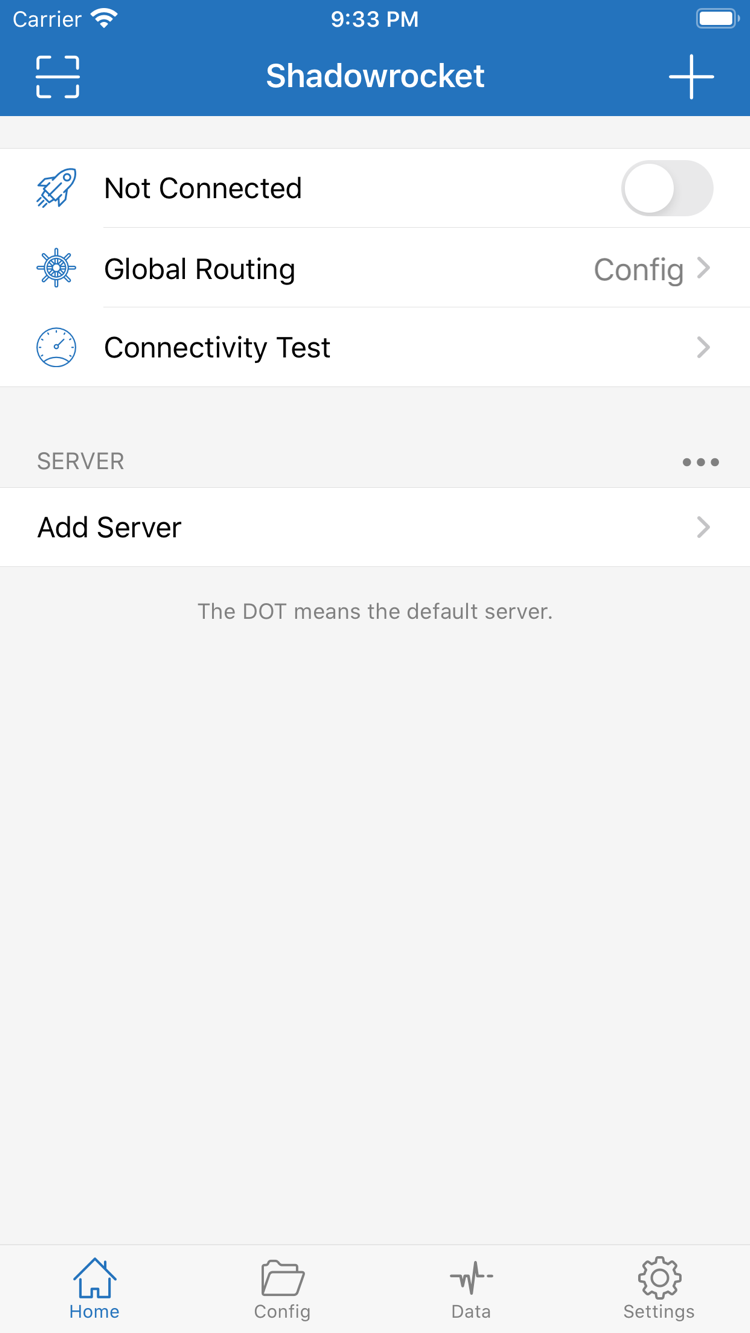
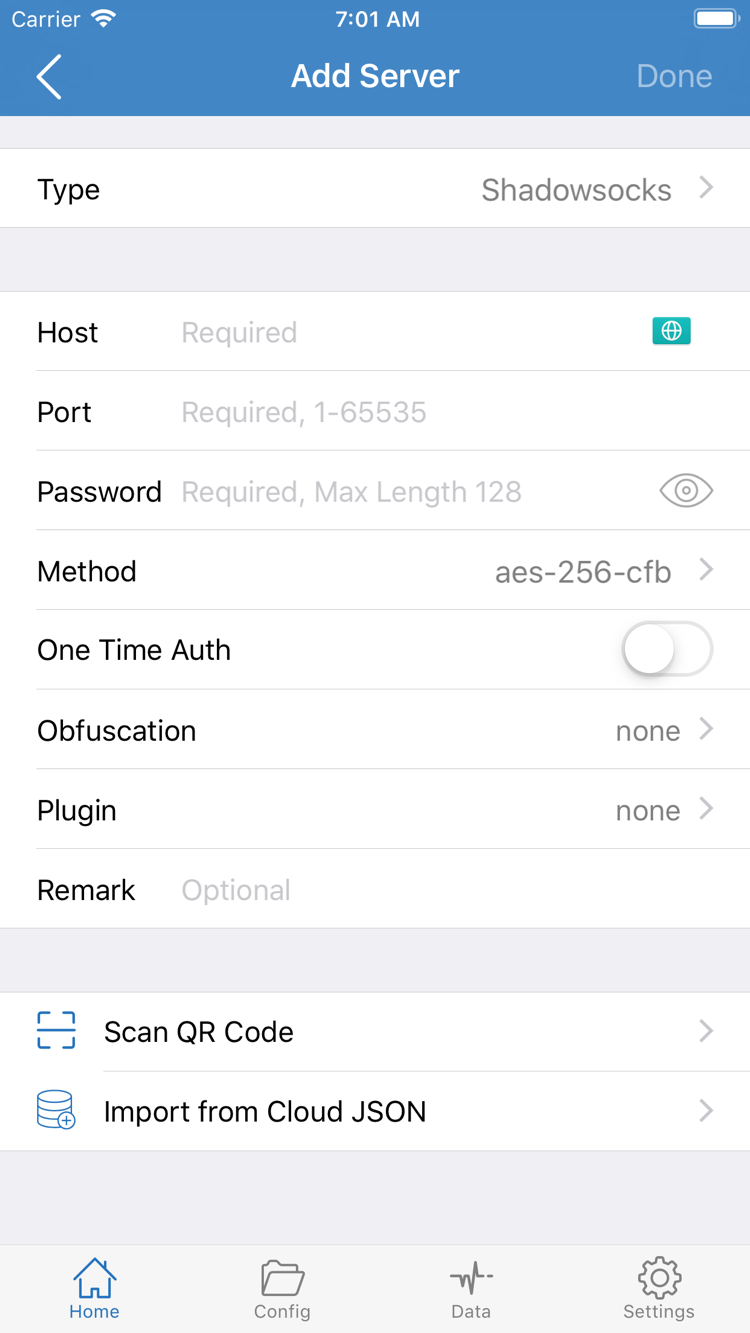
Restoring purchase history and migrating configuration are separate tasks. Before erasing your old device, back up any configuration you want to keep, then import your own subscription or server details on the new device. Store backups containing links, access credentials or server settings somewhere protected; do not post them in public chats or help threads with screenshots. After installation, follow the setup guide to check the import and first connection.
Moving to a new Mac, Windows, Android or Linux device does not require restoring an App Store purchase. Download the free installer for the new device's OS and architecture from this site. If moving from an Intel Mac to an Apple Silicon Mac, or changing Linux distributions, choose the package type again rather than assuming the old computer's installer will work.